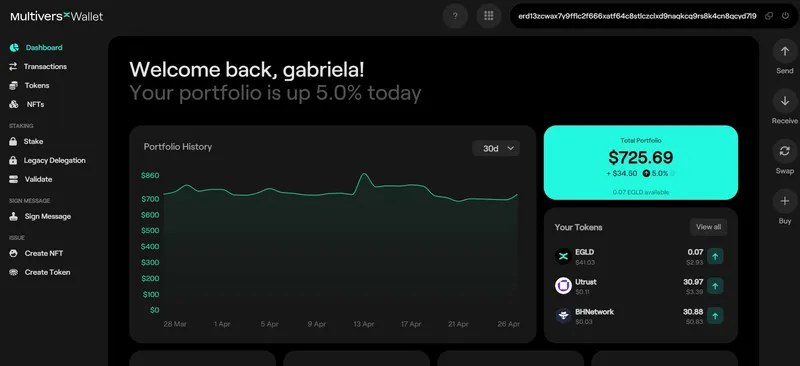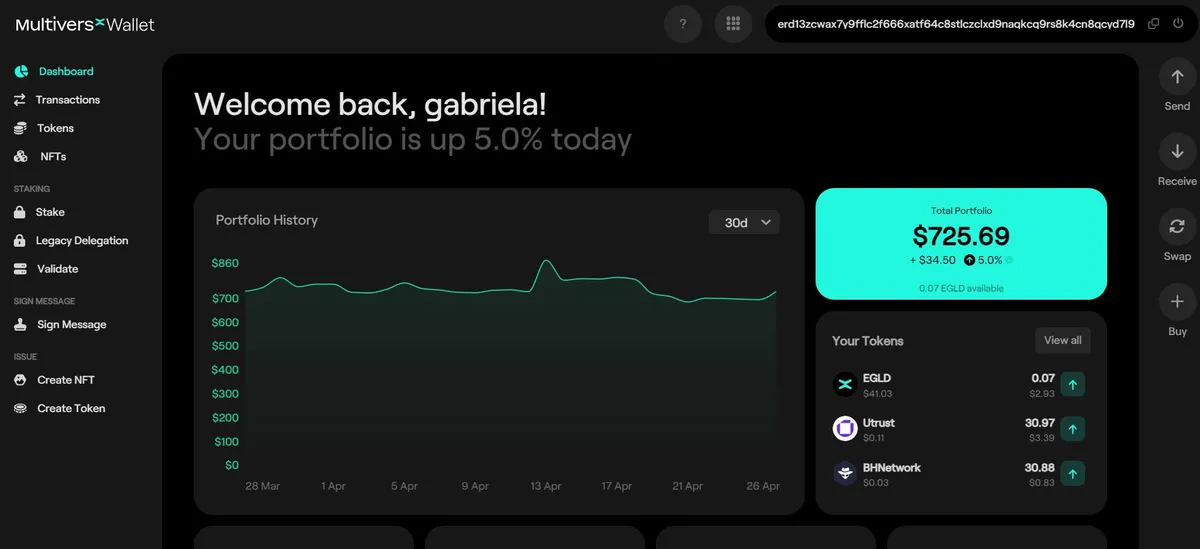
1. Access the link below in order to import your xPortal wallet:
https://wallet.multiversx.com
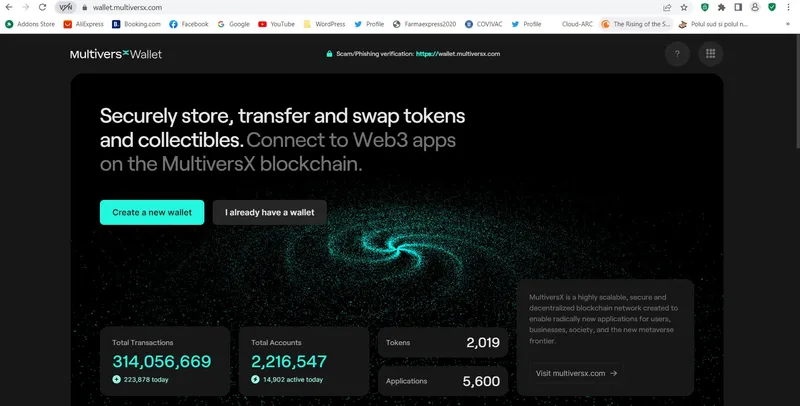
2. Click on “I already have a wallet” and then on “Restore your wallet”:
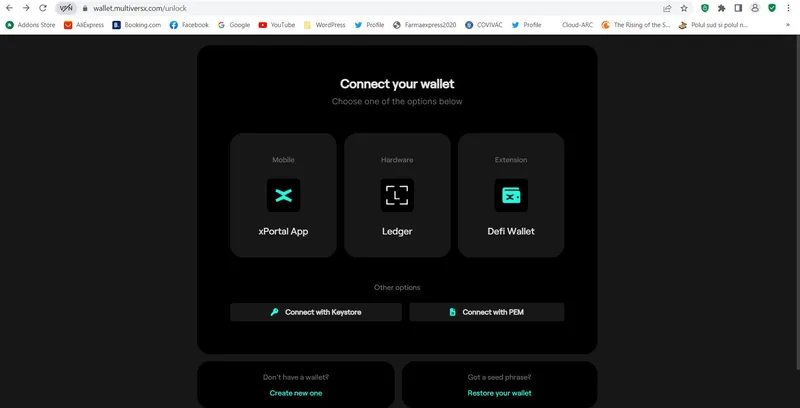
3. Fill in the top field with the Recovery Phrase you can find in your xPortal App at PROFILE/Settings or in a personal secured document (the 24 words in the specific order):
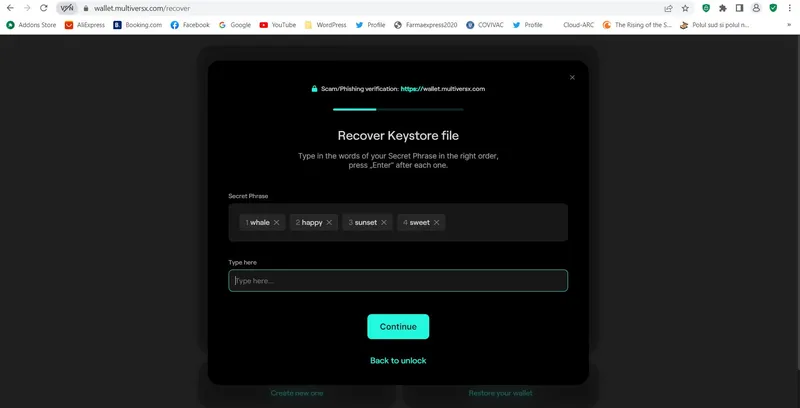
Here’s the way you can find the Recovery Phrase in your xPortal App!

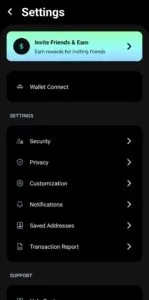
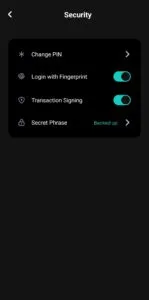
4. Now create a very strong password for your imported wallet:
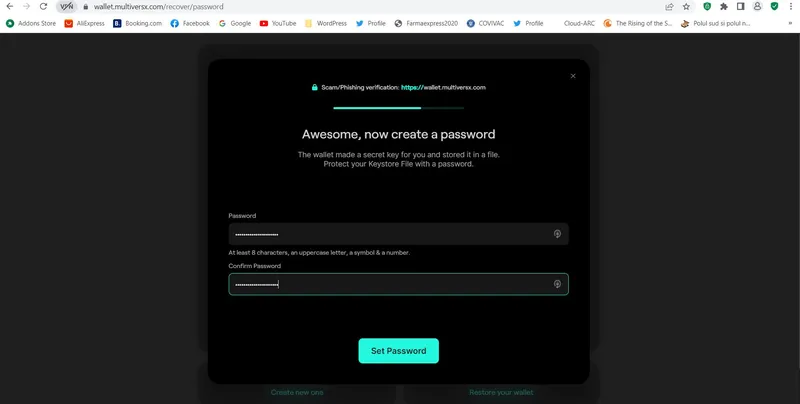
5. Once you set your password, you are able to download your Keystore file once or again:
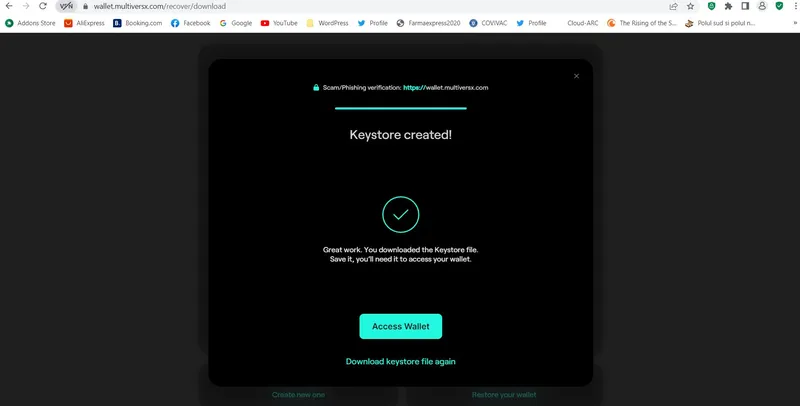
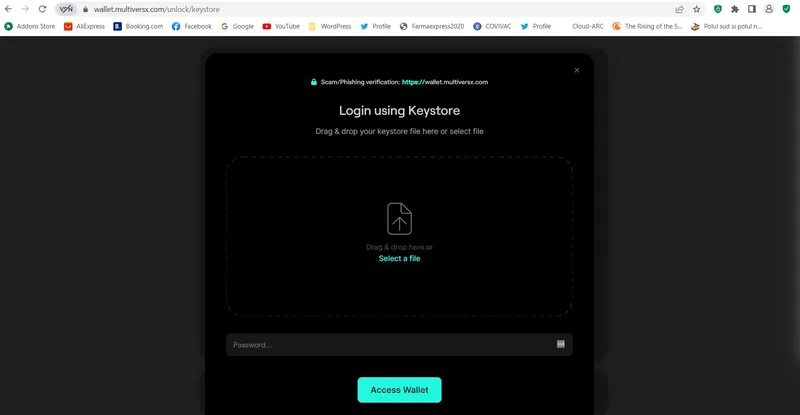
6. Access your wallet using the Keystore file and the strong password you chose:
7. Your wallet was successfully imported! If you still have doubts, check your ELROND wallet adress, in order to see if it’s the same as the one written in your Maiar App account: